
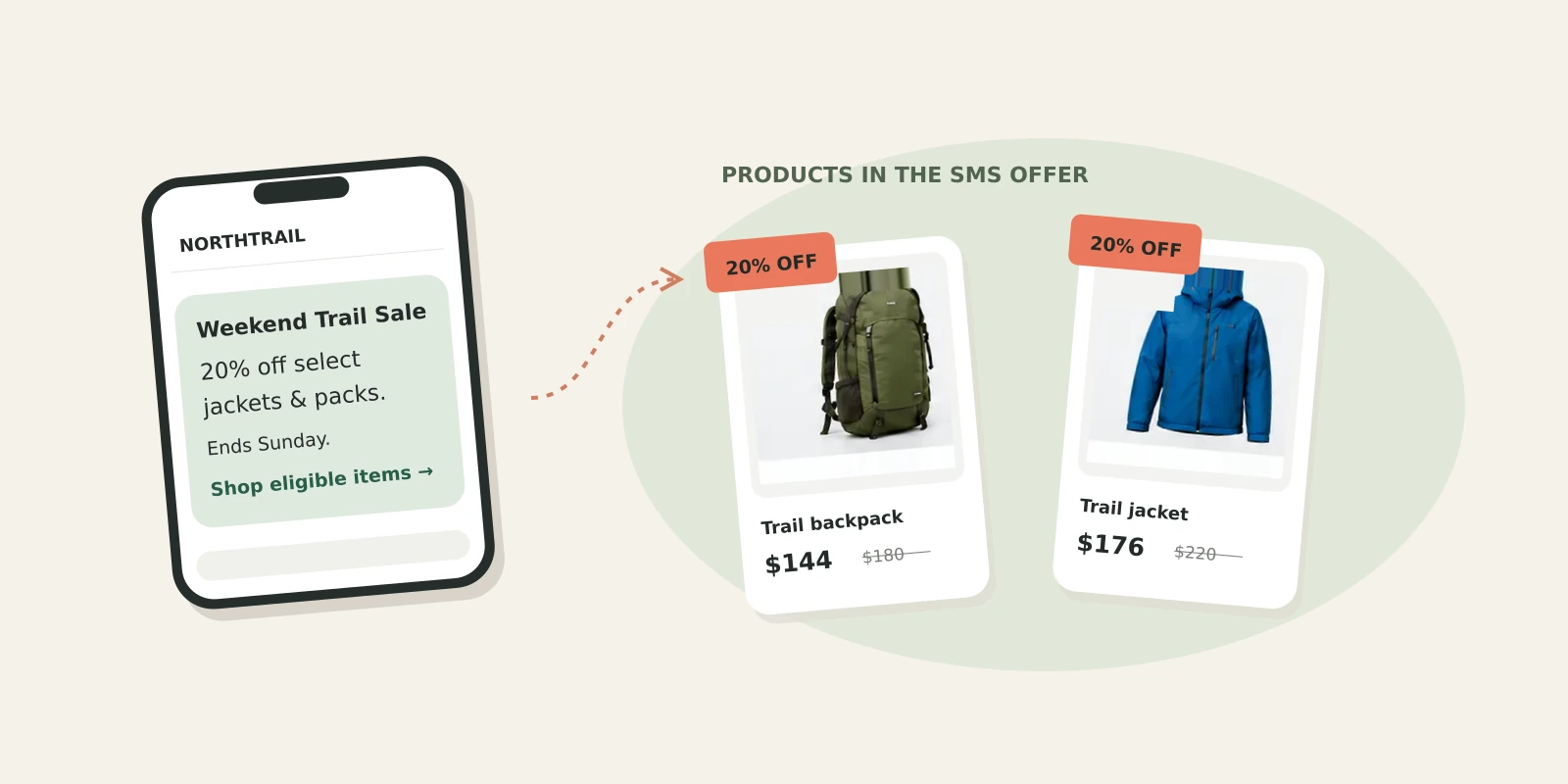


A shopper taps the link in your text and lands on a collection page. Which products qualify for the offer? How much will they save? When does the sale end?
Your SMS introduces the offer. The collection page needs to make it easy to act on, with eligible products clearly marked and savings that match checkout. Product labels and badges help shoppers make those decisions while they browse. Product labels and badges are visual markers on product cards, such as “20% off,” “New” or “Low stock.” They are different from Shopify product tags used to organize products and build collections.
Consider a fictional outdoor store, Northtrail Outfitters, running a weekend promotion on selected jackets and backpacks. We’ll follow that campaign from the text message to the collection and the questions a shopper asks before buying. All campaign details and conversations in this example are illustrative.
Key takeaways
- Mark eligible products clearly, especially when a collection includes excluded items.
- Give each label a purpose and check that it stays readable on mobile.
- Match displayed savings, deadlines, and stock messages to the actual offer.
- Test one label change at a time, with a reliable way to show each version.
Match your SMS offer to the right Shopify collection
Before building the page, write down the offer, eligible products, exclusions, and deadline. These details need to agree across the SMS, collection, product cards, and checkout.
For Northtrail’s Weekend Trail Sale, the campaign looks like this:
| Campaign element | Northtrail example |
|---|---|
| Campaign name | Weekend Trail Sale |
| Offer | 20% off eligible jackets and packs |
| Eligible products | Jackets and backpacks tagged “trail-sale” |
| Exclusions | Gift cards, clearance items, and bundles |
| Deadline | Sunday, 11:59 pm store time |
| Audience | Existing SMS subscribers who bought outerwear before |
| Landing page | Existing Jackets & Packs collection, with eligible sale products clearly marked |
Clear exclusions make the label and banner decisions easier: a clearance item may sit in the collection, but it must not carry the weekend offer’s 20% label.
The text gives subscribers the essential details and a direct route to the collection:
“Northtrail: Weekend Trail Sale is on. 20% off select jackets and packs until Sunday 11:59 pm. Shop eligible items: [link]. Reply STOP to opt out.”
Choose subscribers for whom the offer is relevant. SMS segmentation can help define a group such as previous outerwear buyers, rather than sending every promotion to the entire list. In TxtCart Campaigns, build the campaign for the chosen segment and link directly to the collection shown in the offer.
Decide whether the collection should include excluded products
Northtrail reuses its existing Jackets & Packs collection. It contains 42 products, but only 28 qualify for the sale. That keeps the familiar collection URL while allowing shoppers to compare the wider range. The tradeoff is that full-price items, clearance products, and excluded bundles need to be distinguishable. A collection containing only eligible products is another option when it makes the campaign easier to shop.
Use product labels to show which items qualify
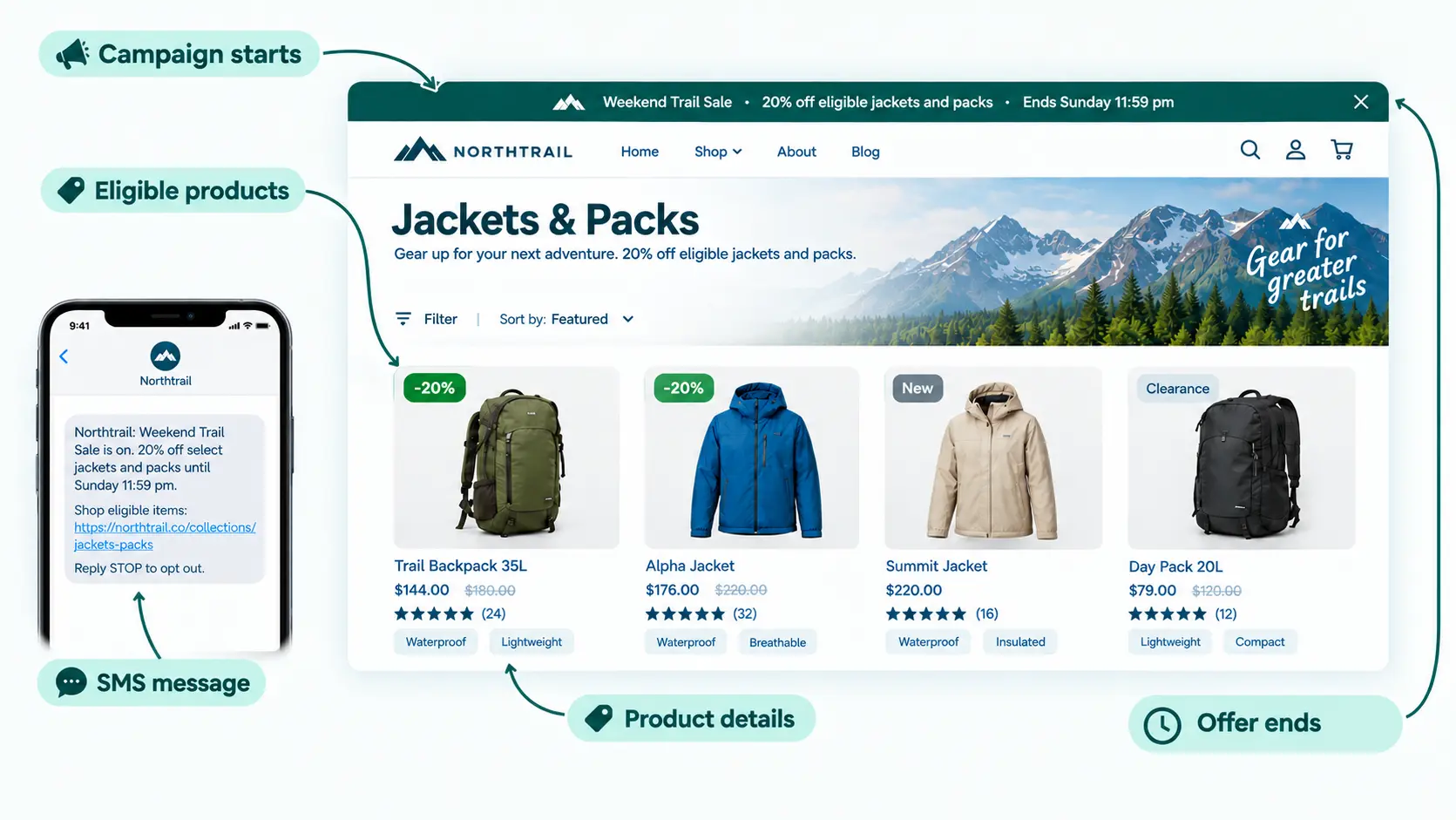
The banner can explain the promotion, but shoppers still need to identify qualifying products as they scan the grid. Divide the information between the banner, product labels, and product details:
| Page element | What belongs there | Northtrail example |
|---|---|---|
| Collection banner | Offer, exclusions, and deadline | “20% off eligible jackets and packs. Ends Sunday 11:59 pm.” |
| Product label on the image | Eligibility and the saving | “-20%” on qualifying items only |
| Beside the product details | Attributes that help the choice | “Waterproof” or “Fits laptops up to 15 in” |
| Below the grid | Fine print and exclusions | “Gift cards and clearance excluded” |
Use the banner for the overall offer and the product label to confirm that an individual item qualifies. Attributes such as material, fit, or capacity help shoppers choose between eligible products. Keep important exclusions near the offer as well as in any supporting fine print.
An app such as DECO Product Labels & Badges can apply labels through configurable rules, reducing manual work across the collection. Set the rules around the campaign’s eligible products, then preview the result. If you use a banner or countdown, check that your chosen theme or app supports it and set it to the offer’s actual deadline.
Give competing labels a clear priority
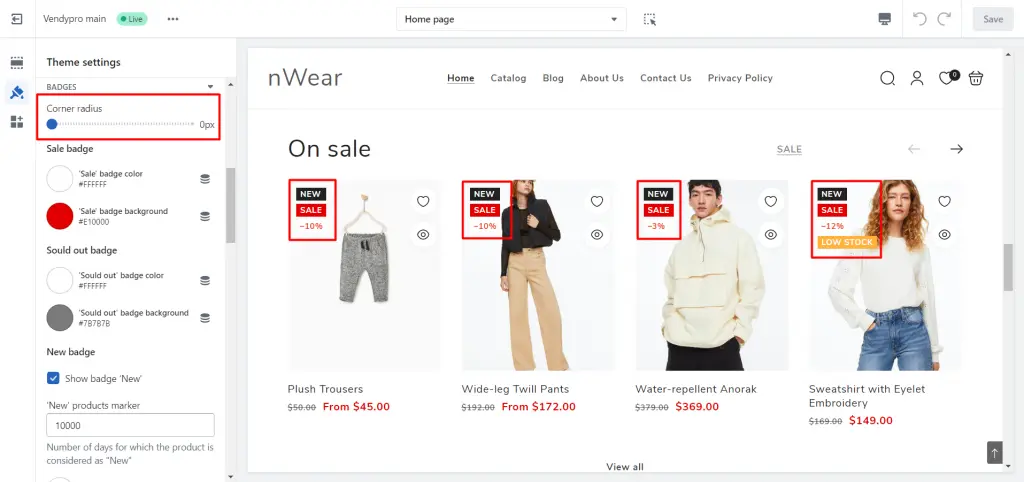
A jacket can be new, a bestseller, and part of the sale. Displaying all three messages at equal weight makes the product card harder to scan.
For Northtrail’s discount campaign, the offer label deserves the strongest emphasis because it confirms why the shopper clicked. Treat this as a starting point: the most useful label depends on the campaign and what shoppers need to choose.
Use this order as a working priority for the weekend sale:
| Priority | Label type | When to show it | Placement |
|---|---|---|---|
| 1 | Offer label (“-20%”) | Eligible products only | On the image, top corner |
| 2 | Real scarcity (“Low stock”) | Only when inventory is truly low | On the image, other corner |
| 3 | Social proof (“Bestseller”) | Top sellers in the campaign | Near the title, smaller |
| 4 | Freshness (“New”) | Recent arrivals only | Near the title, smaller |
As a rule of thumb, start with one primary label on the product image and no more than one secondary label. Move less important information beside the title or remove it for the campaign. Test the arrangement on mobile before adding more.
Check how your theme or label app handles overlapping conditions. A product that qualifies for both “New” and “Sale” should show the intended priority consistently across the collection.
Check the product cards on mobile
The page needs to work on the phone used to open the text. Narrow product cards leave little space for labels, prices, and product details, so check them together:
- Keep labels short. Use “20% off” rather than putting the full campaign message on every card.
- Use strong contrast between text and background.
- Keep labels away from the product’s key details, such as a logo or a face.
- Adjust label sizes for mobile and desktop where your theme or app supports it.
Open the campaign URL on a real phone. Check that labels don’t cover the product, its price, or a purchase control, and that shoppers can still distinguish eligible and excluded items.
Keep labels accurate from launch to expiry
Once the page is ready, check what happens as the promotion starts, inventory changes, and the offer ends. A label should reflect the current campaign, not a setup that was correct several days ago.
Set the display window
Schedule promotional labels and banners around the actual start and end of the offer. If your app supports scheduling, check its settings and the store’s time zone together.
Have the page ready before the SMS is sent. Open a test message on your phone and follow its link to check that the offer is visible and the collection contains the intended products.
Check stock, pricing, and eligibility
Use low-stock labels only when inventory supports them. Keep inventory tracking on for campaign products and review sold-out items during the sale.
Remove or clearly mark unavailable products so shoppers can identify what they can still buy. Check that any inventory message applies to the relevant product or variant.
Displayed savings must match the discount at checkout. A sale price shown against a compare-at price, an automatic cart discount, and a discount code work differently. Confirm how this campaign’s discount is applied and whether the label can represent it accurately; a displayed percentage does not apply the discount by itself.
Run a test order with one eligible and one excluded product. Check the final prices, discount stacking, and any code requirement against the banner and SMS. If an item also carries a clearance label, make sure shoppers can tell which offer applies.
The same boundary applies to early access: a label communicates the offer, while separate store settings must enforce any access restriction or discount eligibility.
Remove expired campaign messages
When the weekend offer ends, remove its promotional elements without disturbing other active discounts:
- Replace the banner with a “Sale ended” message or remove it.
- Remove the expired campaign’s labels from affected products.
- Check that the collection no longer appears in navigation if it is temporary.
- Confirm the SMS link now goes to a useful page.
Use SMS replies to answer questions product labels cannot
An eligible-product label can confirm the discount, but it cannot answer every question about fit or suitability. A shopper looking at Northtrail’s rain shell may still need to know whether it will fit over a fleece.
Two-way SMS lets that shopper reply to the campaign text and continue the conversation in the same thread.
TxtCart’s AI Agent can answer product questions over SMS using the information supplied by the merchant. For this campaign, prepare accurate product and offer details so a reply about an item’s eligibility or fit can help the shopper decide what to do next.
In the illustrative exchange below, a shopper checks whether the discount includes an XL rain shell, then asks about layering:
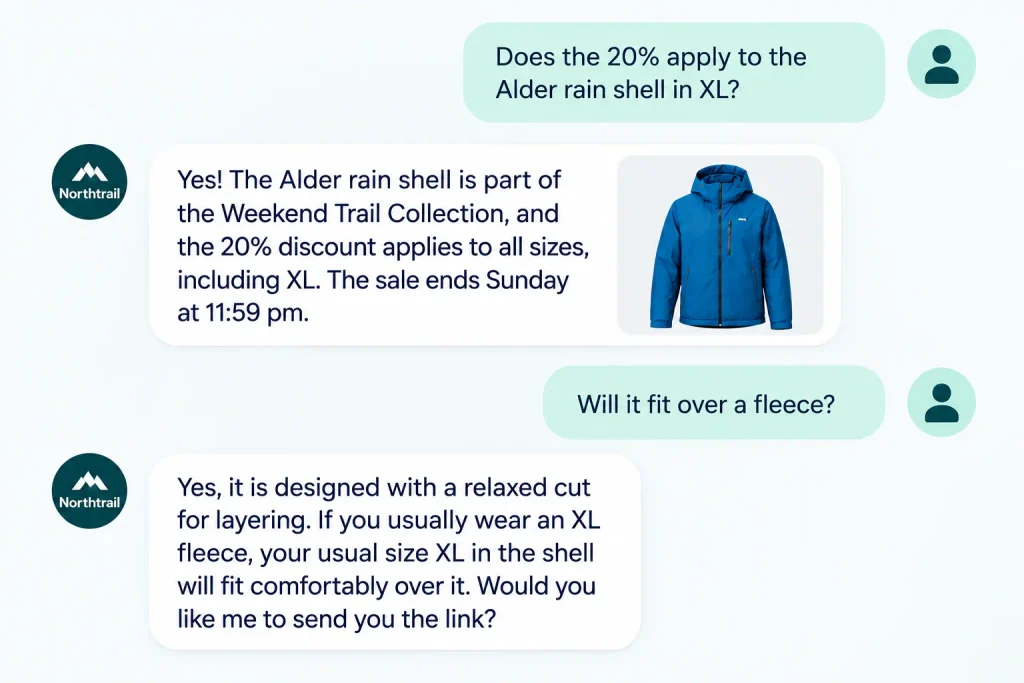
The conversation confirms that the shell qualifies, states the deadline, and explains its fit over an XL fleece. It carries the same offer information as the storefront while addressing a question the label alone cannot answer.
Before sending, give the AI Agent the campaign’s eligible products, exclusions, deadline, and relevant sizing and shipping information. Decide which questions need a person, and keep the answers consistent with the storefront.
Test one label change and follow the purchase path
Once the offer and page are working together, test a specific merchandising choice. Changing the label wording while keeping the campaign, products, and offer steady gives you a clearer comparison.
For a product originally priced at $120, a 20% discount saves $24. That gives you two equivalent ways to describe the offer. For differently priced products, calculate the dollar saving for each item:
| Test element | Version A | Version B |
|---|---|---|
| Label wording | “-20%” | “Save $24” |
| Everything else | Same offer, same products, same text, same send time | Same |
Run both versions at the same time with randomly assigned groups, provided the storefront can reliably show each group its assigned label. Send the same SMS campaign and keep the offer, products, page layout, and measurement window consistent.
If you can only compare separate periods, treat the result as directional. Changes in timing, inventory, traffic, or shopper behavior may explain part of the difference.
Measure label performance from SMS click to purchase
| Metric | Where to find it | What it tells you |
|---|---|---|
| SMS link clicks | TxtCart campaign reporting | How many shoppers clicked the campaign link |
| Product clicks | Your analytics tool, if product click events are set up | How often shoppers clicked product cards |
| Add-to-cart rate | Shopify analytics | The percentage of sessions that resulted in an add-to-cart action |
| Purchases and revenue per session | Shopify analytics, by landing page or UTM | Completed purchases, plus revenue divided by sessions |
| Opt-outs | TxtCart reporting | How many subscribers unsubscribed after receiving the campaign |
SMS-attributed revenue alone does not prove that a label caused additional sales. A randomized group receiving no SMS can help estimate the campaign’s incremental effect; comparing label versions requires both groups to receive the campaign. Keep those questions separate when interpreting the results.
Use consistent definitions and denominators when comparing SMS conversion rates, and read purchases alongside product clicks and add-to-cart activity. The comparison should tell you which page version to investigate or retain, rather than simply which dashboard number is larger.
Product-label checklist before an SMS campaign
- Offer, eligible products, exclusions, and deadline are written down
- SMS text links directly to the promoted collection
- Banner states the offer and the deadline
- Eligible products have one primary label
- Secondary labels are limited and readable on mobile
- Labels and banner are scheduled to start and end with the campaign
- A test order confirms checkout prices match the labels
- Inventory tracking is on for campaign products
- The AI Agent and your team have accurate offer, sizing, and shipping information
- Subscribers have opted in and opt-out instructions are included; review these SMS opt-in examples if you need help with signup wording.
- A clean-up task is set for the day the sale ends
For broader troubleshooting after the click, read our guide on post-click friction.
Keep the SMS, product labels and checkout offer consistent
For Northtrail, the text promises a weekend discount, the collection shows which products qualify, and the conversation helps a shopper choose the right fit. Each part answers a different question on the way to purchase. Product labels are useful when they make that decision clearer, without competing with the product itself.
For your next collection-wide promotion, explore TxtCart Campaigns to build and schedule the SMS. Use the checklist above to prepare the destination page, and make sure your team or AI Agent has the offer details needed to answer replies. The message, the page, and the conversation should give shoppers the same clear offer.